On this page
- No root is needed for any of the three methods.
- Private DNS and ad blocker apps filter by server name, so they work in games and apps; they cannot remove ads served from the same address as the content.
- A blocking browser hides ads inside web pages but does nothing for other apps.
- Use Private DNS for zero setup, an app when you want control, a browser for web reading.
Ads on a phone come from three places: web pages you open, ad networks inside apps, and notifications or pop-ups from sites and rogue apps. No single setting removes all three, which is why a good answer to "how do I block ads on Android" is a short toolkit rather than one trick. This guide covers the three no-root methods, with the exact steps, what each one cannot do, and how to choose.
Method 1: change your Private DNS (no app)
Every time an app wants to load something from a server, it first asks a DNS server for that server's address. Android 9 and newer lets you choose which DNS server answers, using an encrypted connection called DNS over TLS. If you choose a provider that filters ads, it answers "that server does not exist" for known ad networks, and the ad never loads. It works for every app on the phone, including Chrome.
- Open Settings and search for Private DNS (it is usually under Network & internet, or Connections on some phones).
- Choose Private DNS provider hostname.
- Enter a filtering provider's hostname, for example
dns.adguard-dns.com, and tap Save. - Open an app or web page that normally shows ads to test it. If the phone says "Couldn't connect", the hostname is wrong or the network blocks it; set Private DNS back to Automatic.
Strengths: free, nothing to install, no battery cost, works alongside a normal VPN. Weaknesses: it is all or nothing, so when one app breaks you cannot leave only that app out, and you get no counts to show it is working.
Method 2: use an ad blocker app with a local VPN
Apps such as ClearAd, AdGuard, Blokada and DNS66 create a VPN that never leaves your phone. Android sends every address lookup to the app, the app checks the name against a block list, and answers "no such server" for ads. Everything else, including your videos and downloads, goes straight to the internet, so speed and battery are barely affected. Our explainer how DNS ad blocking works walks through each step.
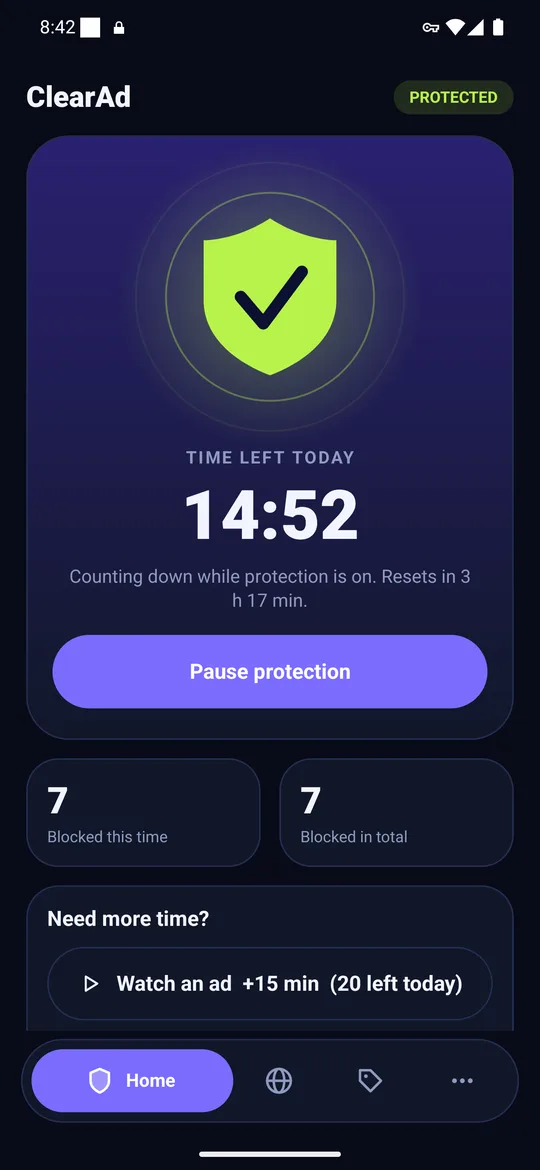
The advantage over Private DNS is control. You can switch the filter off for one app, allow a single blocked address when something breaks, choose the block list, and see counts. The costs are a small amount of battery, a key icon in the status bar, and a limit of one VPN at a time on Android: while the ad blocker runs, a normal VPN will take over (or the reverse).
Because Google Play does not allow apps that block other apps' ads, most of these apps are installed from the developer's own website or another store. Read why ad blockers are not on Google Play and how to install an APK safely before you install any.
Method 3: browse with an ad-blocking browser
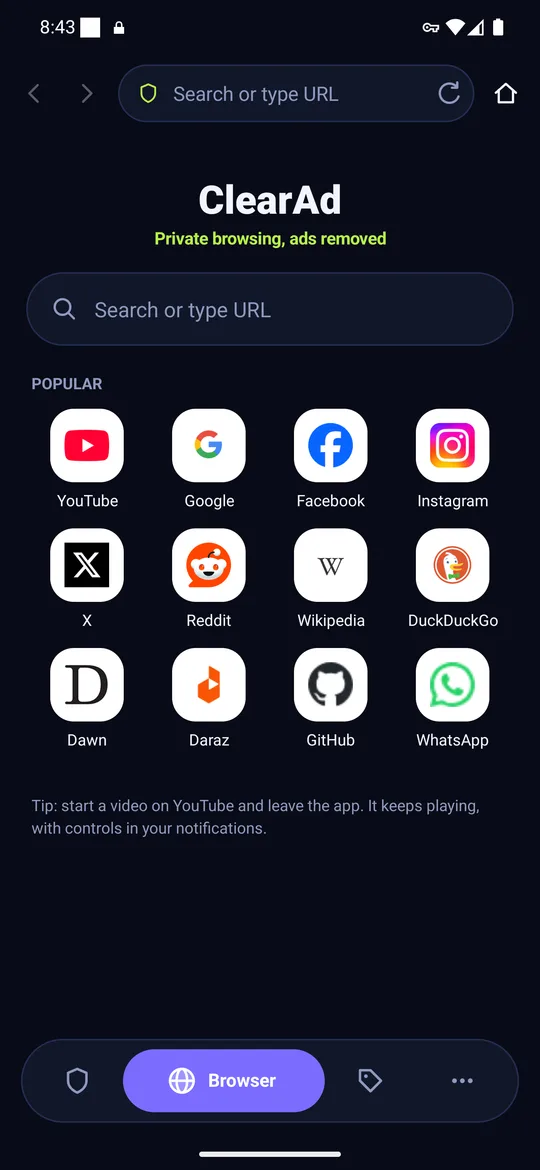
A browser with built-in blocking can do something DNS cannot: hide the empty space and the banner inside a web page, because it can see the page itself. If most of your ad annoyance is news and recipe sites, this alone helps a lot. It does nothing for ads in games or other apps. ClearAd includes its own browser for this reason; the filter and the browser use the same block list.
Which method should you pick?
| Private DNS | Ad blocker app | Blocking browser | |
|---|---|---|---|
| Works inside apps and games | Yes | Yes | No |
| Hides ads inside web pages | No | No (browser only) | Yes |
| Leave one app out | No | Yes | Not applicable |
| Shows what was blocked | No | Yes | Sometimes |
| Battery and speed cost | None | Small | Small |
| Setup | 1 minute | 5 minutes | Install a browser |
A sensible stack is Private DNS or an ad blocker app for apps, plus a blocking browser for the web. If you only want to try one thing today, change your Private DNS. It takes a minute and is easy to undo.
What none of these can do
Be wary of any tool that promises to remove every ad in every app. DNS-based blocking removes ads that come from separate ad servers. It cannot separate ads from content when both come from the same server, which is the case for video ads inside the YouTube app and sponsored posts in Facebook and Instagram feeds. We explain the reasoning in why ad blockers cannot block YouTube app ads.
Troubleshooting
- An app stopped working after you turned filtering on: leave that app out of the filter (ad blocker app) or set Private DNS to Automatic (Method 1), then try again.
- You see an empty space where the ad was: that is the app reserving room for the ad. DNS cannot remove the space.
- Ads still show in one app: it may use its own DNS, or serve ads from its own servers. See the limits above.
- No internet at all after changing Private DNS: the hostname is mistyped or your network blocks encrypted DNS. Set Private DNS back to Automatic.
Frequently asked questions
Can I block ads on Android without installing anything?
Yes. Set a filtering hostname under Settings, Private DNS (Android 9 and newer). It blocks ads from known ad servers in most apps and browsers.
Do I need root to block ads in apps?
No. A local-VPN ad blocker app or Private DNS works without root.
Why do some ads still show after I block ads?
Ads served from the same server as the content, such as YouTube video ads, cannot be separated from it by a DNS filter. Some apps also use their own DNS.
Is it safe to use an ad blocker app?
It is as safe as the app you pick. A local-VPN blocker should keep lookups on the phone; read its privacy policy and install it only from the developer's official site or a store you trust.
Block ads in your apps with ClearAd
No root. 15 free minutes every day. Blocks most ads, not all. Installed from this site as an APK.